CutConvert for Premiere Pro
Finish your cut, then choose Send to producer inside Premiere. Prepare a free review copy in your browser so your producer can watch and suggest changes. Caption conversion, transcript imports and sequence reports share your Pro or Studio plan.
Install the panel and send your first cut
Send to producer is free and needs no panel key: open a saved project in Premiere Pro 25.6 or newer, choose the button, then continue in your browser. The other tools (captions, transcripts, reports) preview free and need Pro ($9/month, or $90 a year) or Studio ($19/month, or $190 a year) to save their output; single-file purchases and packs don't include the panel.
- Download the panel (.ccx). Double-click the file. The Creative Cloud desktop app installs it and may warn that it comes from outside the Marketplace; that is expected for a direct download.
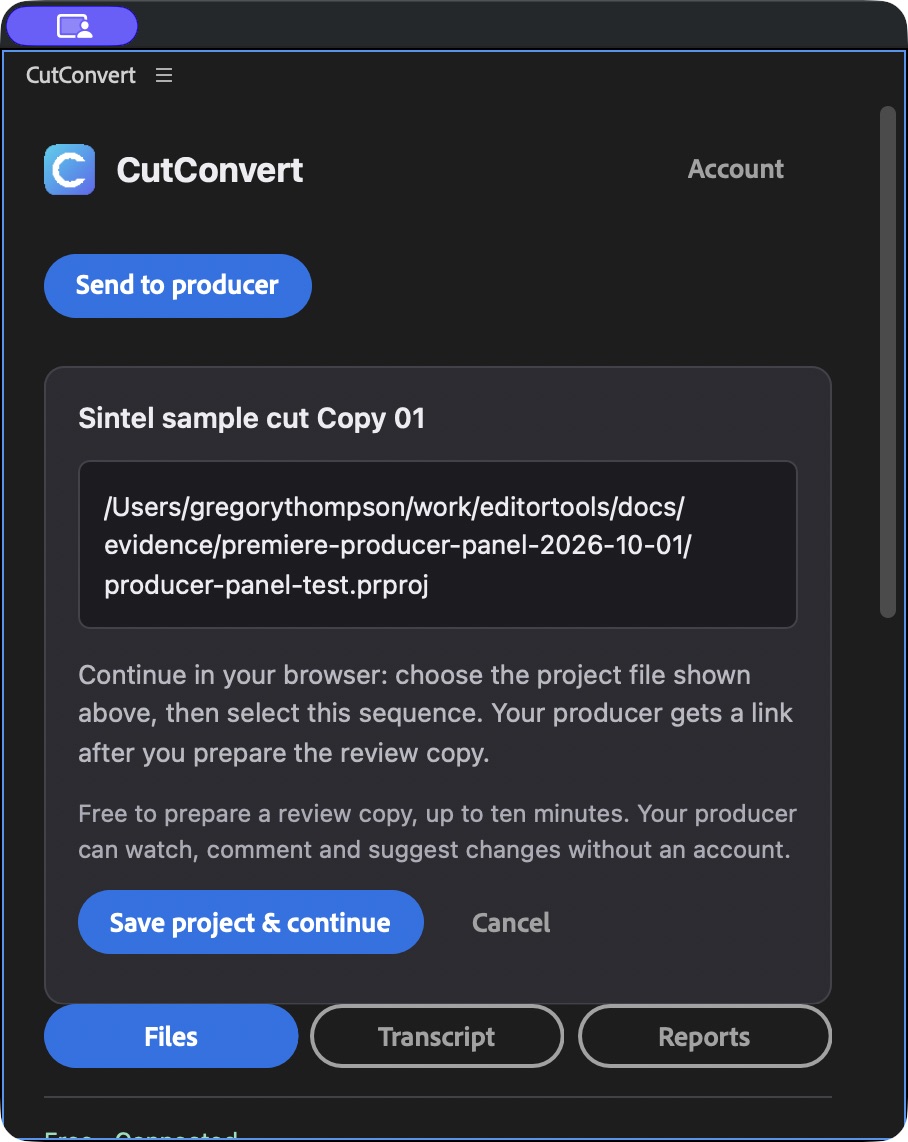
- Open your cut in Premiere Pro 25.6 or newer and choose Window → UXP Plugins → CutConvert. Click Send to producer, check the sequence, then choose Save project & continue. Your browser asks for that saved .prproj and the same sequence. Link your media and the copy starts automatically, or use an exported MP4. For cuts over 30 minutes, export the MP4 from Premiere using the settings on the page. Fill in who it’s for, sign in, confirm you may share it, then create the link. Choose Your reviews in the panel to see replies and download accepted changes.
- For conversions, reports and transcript imports, open your account page, create a plugin key and copy it. It is shown once.
- In Premiere Pro 25.6 or newer, open Window → UXP Plugins → CutConvert, choose Account, paste your panel key, and click Connect.
- In Files, choose your files and output format. Preview output is free; Convert & save writes the results and imports supported captions into the Project panel.
- In Reports, your sequences load automatically. Choose a sequence, preview it, select tracks, and save the reports to a folder.
- In Transcript, choose a file or paste text, review the preview, then choose Import into sequence. Find the result in the Text panel; Premiere Undo restores the previous transcript.
- Open Output settings for frame rate and filename suffix. Templates & saved settings lets you reuse a delivery.
Requires Premiere Pro 25.6+ and Creative Cloud. Producer review supports cuts up to three hours. Premiere Pro 26 projects support guarded write-back; older projects return as a Premiere XML sequence to import. Native handoff tested on macOS in Premiere 26.5.2. Conversion outputs and transcript imports require Pro or Studio. Version 0.9.16.
Send the cut while it is still open in Premiere
The button sits above Files, Transcript and Reports. It shows the active sequence and saved project, saves your latest work, and opens the review page. Your producer can watch, comment and suggest changes from a phone or computer without an account. You choose what comes back into your project.
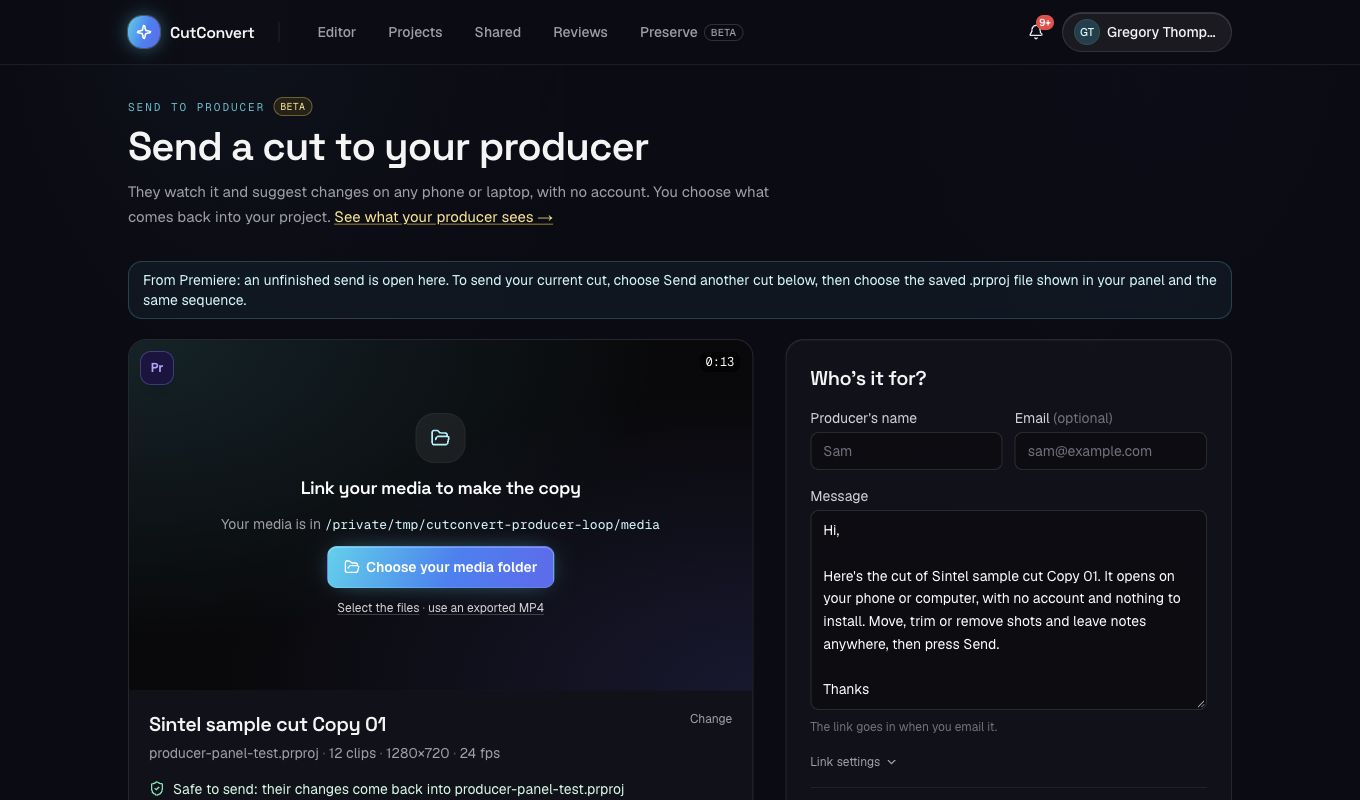
Review copies support cuts up to three hours. Over 30 minutes, use a Premiere-exported MP4. Free accounts can have five cuts out for review at once; Pro, Studio and teams are uncapped. Opening the page does not upload your project or notify your producer. Sign in and confirm you may share the cut before uploading. Your reviews brings you back to replies, approvals and downloads.
See the full producer review workflowWhat the panel does
It is the website’s converter engine, packaged as an extension for Premiere Pro. Drop an SRT, VTT, SBV, ASS, DOCX, timed CSV, Rev or Otter text transcript, Whisper-style JSON, a .prtranscript, FCPXML or EDL on it. The panel detects the format, offers the outputs that make sense for it with the same Kept and Changed line as the site, converts on your machine, writes the result next to the source and imports caption files into the open project.
Metering matches the website: files within the free size cap for that converter use no credits; larger files use the credits of your plan. The panel needs Pro or Studio to convert at all, because it is part of what those plans pay for.
Troubleshooting
If the panel does not appear under Window → UXP Plugins, check the Premiere version under Help → About; the panel needs 25.6 or newer. If the key is rejected, create a fresh one on your account page; keys that were revoked stop working immediately. If Premiere did not import the captions automatically, they are still next to the source file; drag them into the Project panel.
Repeat a delivery on the next project
In Files, choose your new source files and open Templates & saved settings. Choose a workflow template or Repeat last delivery. Review Output settings, choose Preview output, then Convert & save. Repeating settings does not charge credits or write files until you convert.
The panel remembers the settings from a completed delivery locally. Source files, project-specific sequence selections and account keys are not included in portable presets. Start with the Avid 25 fps template only when your destination project uses 25 fps.
FAQ
How do I send a cut to my producer from Premiere?
Open your cut and choose Send to producer. Check the sequence and project path, then choose Save project & continue. Signed in with a panel key, your browser opens with that project: choose the sequence to send, then link your media or use an exported MP4 to prepare the review copy (without a key, choose the saved .prproj there first). Cuts can be up to three hours long; over 30 minutes, export the review MP4 from Premiere using the settings on the page. Sending needs no panel key; the key only saves choosing the project file again. Free accounts can have five cuts out for review at once; Pro, Studio and teams are uncapped. Signed in with your key, for a sequence you already sent, Send to producer offers the next round: the review room opens with your saved project and that sequence chosen, and makes the new copy. Choose Your reviews in the panel to review suggestions and download the result. Older Premiere projects return as an XML sequence to import.
Which Premiere Pro versions does the panel support?
Premiere Pro 25.6 and newer, on macOS and Windows. Premiere 25.6–26.1 automatically exports a CSV clip list with clip-relative source offsets in seconds. Premiere 26.2+ uses the native XML export to produce CSV and EDL reports with source timecodes. It is built on UXP and installs through the Creative Cloud desktop app.
Do my files get uploaded?
Panel conversions read and write files on your machine. Account and usage checks send filenames and sizes, never file contents. With a panel key, Send to producer uploads the saved .prproj (the project file only, never media) to your account so your browser opens with it; it is deleted after 15 minutes, and the project is kept with a review only once you share it. With a key, the panel also sends the id of the open sequence to show which review it belongs to and how that review stands. Without a key, the panel uploads nothing and you choose the project file in the browser. The review copy is uploaded only after you choose to share it.
What does it cost?
Send to producer and review-copy preparation are free, with no panel key needed. Free accounts can have five cuts out for review at once; Pro, Studio and teams are uncapped. Downloading the updated project after accepting suggestions is free on every plan. Panel conversions, report saving and transcript imports require Pro ($9/month or $90/year) or Studio ($19/month or $190/year). Annual plans are billed yearly and allowances reset monthly. Preview is free. Single-file purchases and credit packs do not unlock paid panel tools. Website and panel usage share your plan.
What is a panel key?
A key you create on your account page and paste into the panel once. It lets the panel act for your account. It is shown once, stored hashed, and can be revoked from your account page at any time.
Which outputs are imported into the project automatically?
Caption files (SRT, SCC, MCC, EBU-STL, VTT) and XML are imported into the project bin. The transcript tool converts DOCX, TXT, SRT and other supported transcripts or pasted text to Premiere JSON internally, then imports the transcript onto the selected sequence. It appears in the Text panel, and Premiere Undo restores the previous transcript. The panel verifies the retained text and timing before reporting success. Saving a separate JSON file is optional.
Where are converted files saved?
Ordinary conversions save next to the source file. Sequence reports and combined CSVs ask for an output folder and use unique delivery filenames to protect existing files.
What about DOCX, .prproj and .drp?
DOCX transcripts are supported directly. Legacy .doc must first be saved as .docx or .txt. For saved .prproj and .drp archives, use cutconvert.com. To report on an open Premiere sequence, choose the Reports tab without locating the saved project.
What does sequence export include?
A CSV with event numbers, clip and reel names, track, source in/out and sequence in/out timecodes; one cuts-only EDL report per selected track; and Premiere’s native XML snapshot. Transitions become cut boundaries, nested sequences remain single events, and effects are not recreated. Use Premiere’s native EDL export for conform delivery.
Can I paste a transcript without timestamps?
Yes, with estimated draft timing explicitly enabled. Text is fitted to the sequence duration, not synchronized against audio. Timed captions and timestamped documents retain their supplied timing; word times within captions may be interpolated. Review the preview before replacing a transcript.
How are CSVs combined?
Choose comma-separated CSV reports with the same column names. The panel matches reordered headers, appends all rows, preserves timecode strings and quoted text, and adds the source filename. Incompatible headers and malformed rows are rejected.
Related tools & converters
- Your reviewsRead replies, accept suggestions and download the updated cut.
- Premiere producer review guideFrom a saved project to a review link and accepted changes.
- Caption review round tripReview text in a spreadsheet before your next delivery.
- Your plugin keysCreate or revoke keys on your account page.
- PricingPro and Studio include the plugin.
- SRT to Premiere JSONThe same converter, on the web.
- JSON to SRTWhisper, AssemblyAI, Deepgram and YouTube transcripts.
- Import a transcript into PremiereThe Text panel steps for transcript JSON.